How to use this app
कसे वापरावे
Eight steps, each with a picture of the real screen. You do not need an account and you do not need to pay. There is one thing to say yes to, and it is the first thing below.
First: allow location
Your browser will ask for your location the moment you open the app. Tap Allow, every time it asks. Nothing about your location is stored — not on the server, not by us, not ever.
- It is what makes “near you” work — the shortest queues around you, and how far each mandal is from where you are standing.
- It is also what lets you report a queue at all. Without it the three buttons never appear.
- Your coordinates never leave your phone. The app works out on the device whether you are close enough, and sends only which mandal and which colour.
- No account, no name, no phone number, nothing kept and nothing sold.
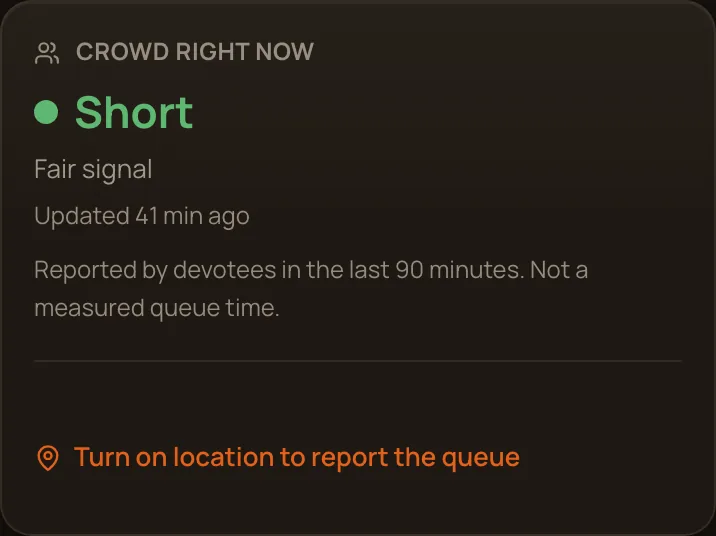
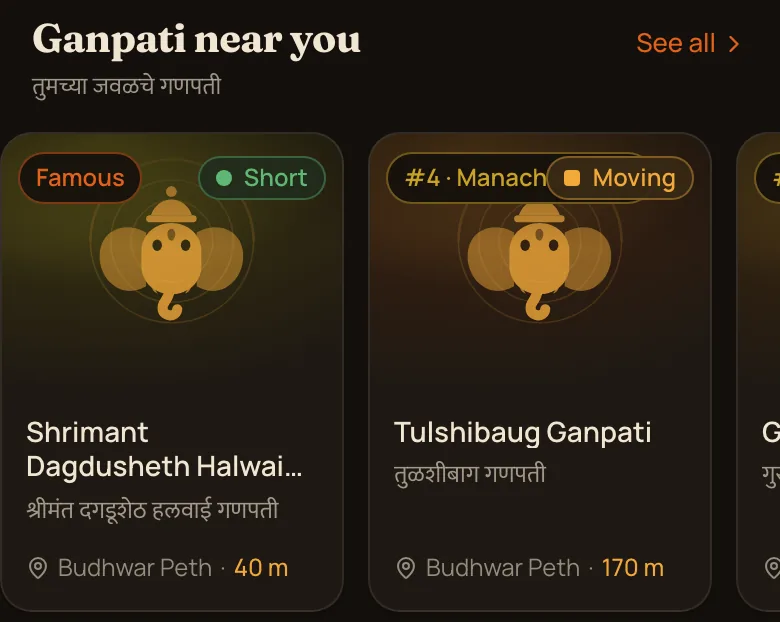
Blocked it by mistake? Tap the padlock or ⓘ next to the web address, set Location to Allow, and reload the page. The app also works without it — you can still browse, use the map and follow routes. You only lose “near you” and the ability to report a queue.
The only thing to memorise
- ShortWalk straight in
- MovingA queue, but it moves
- 30+ minHeavy, settle in
- GreyNot reported yet
See which queues are short right now
आत्ताची गर्दी
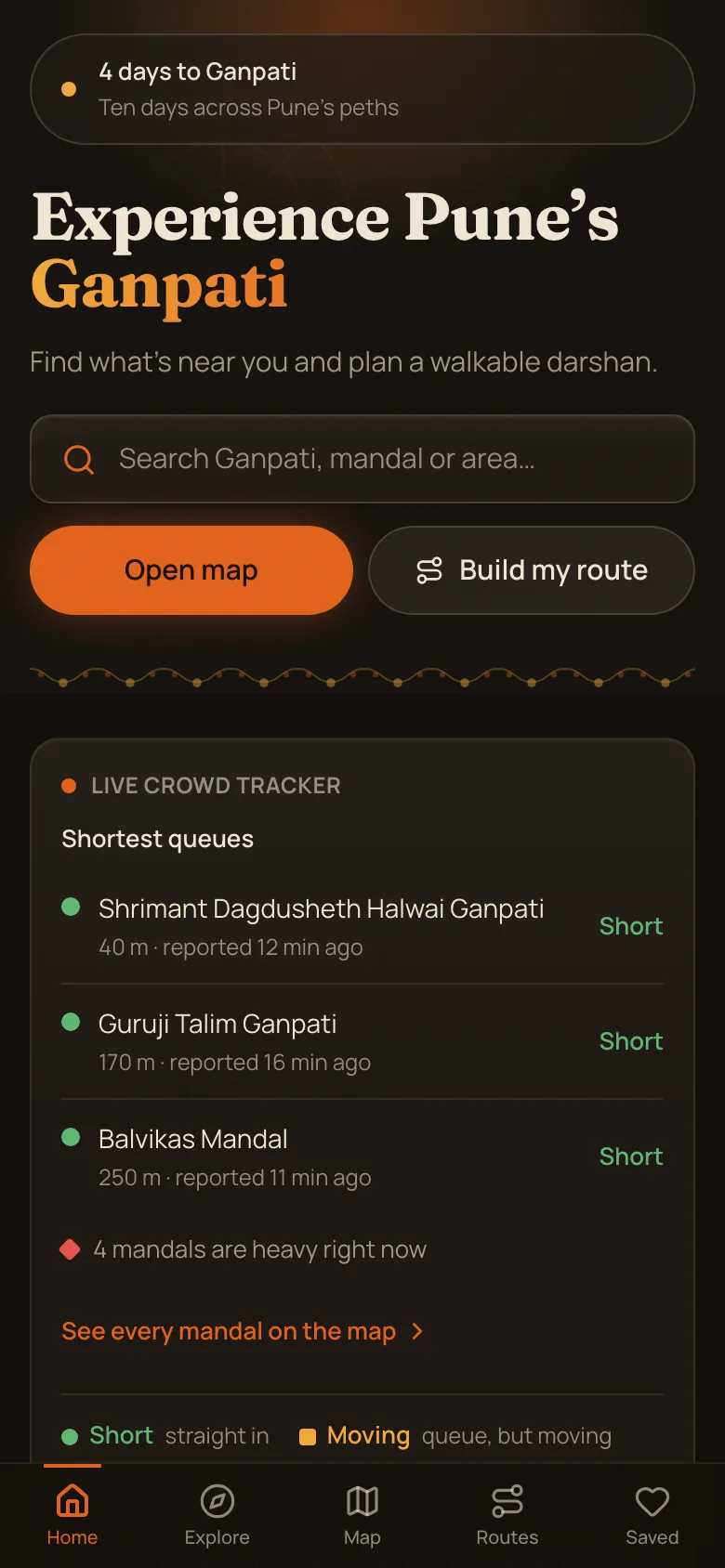
Open the app and the Live Crowd Tracker is already on the home page. It is the whole point of this app — the queue, not the walk, is what decides how many mandals you actually see tonight.
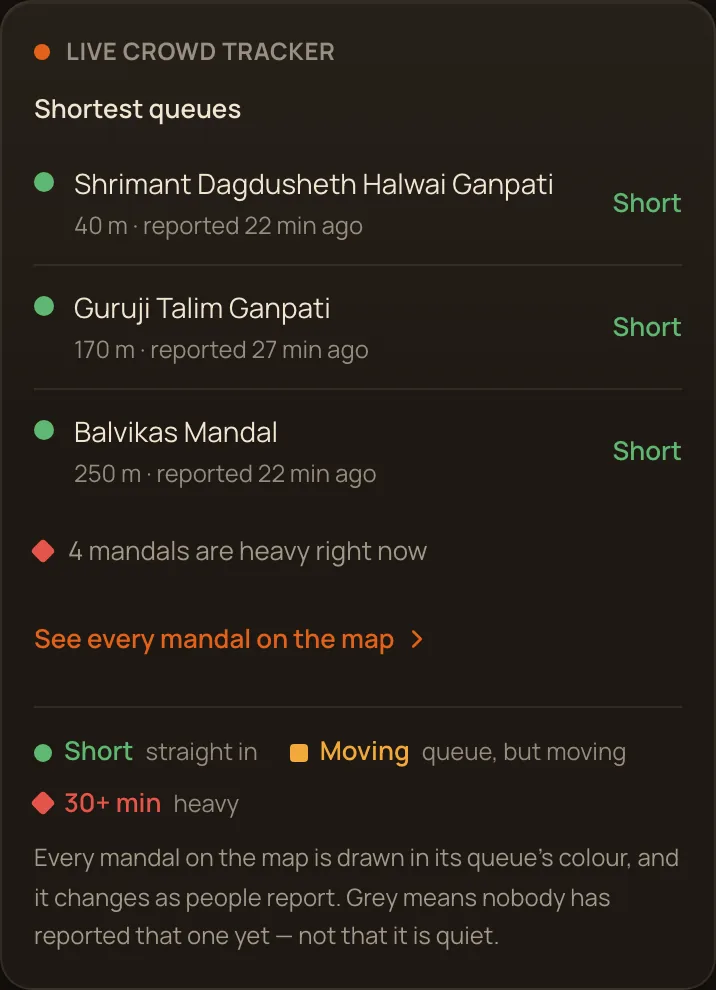
- The three mandals at the top are the shortest queues near you right now.
- Green means walk straight in. Yellow means there is a queue but it is moving. Red means thirty minutes or more.
- Grey means nobody has reported that one yet — not that it is empty.
- Every report expires after ninety minutes, so what you see is tonight, not last week.
- Tap “See every mandal on the map” to open the same colours across the whole city.
Where the colours come from
Devotees standing at the mandal, nobody else. No mandal, committee or sponsor can set its own colour, and a queue is only shown once two different people have reported it — one report on its own reads “Not confirmed yet”.
Tell everyone what the queue looks like
गर्दी कळवा
This is the part that keeps the app alive. If you are standing in the lane, three seconds of your evening tells everyone else in Pune whether to come.
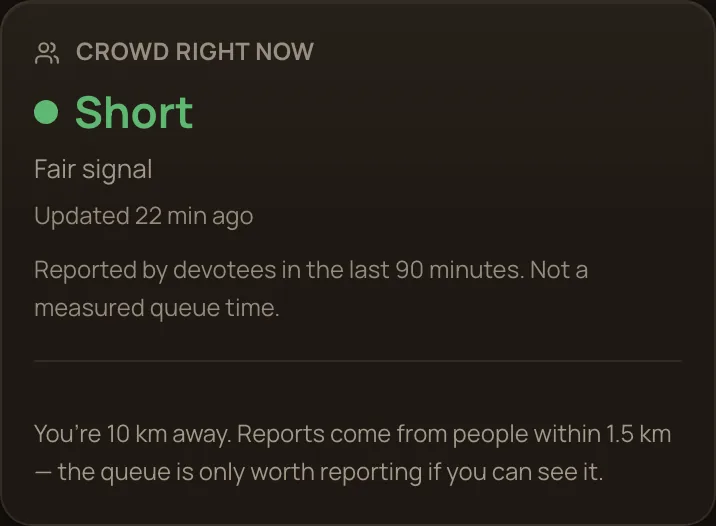
- Allow location when the browser asks — every time. Your coordinates never leave your phone; the app sends only which mandal.
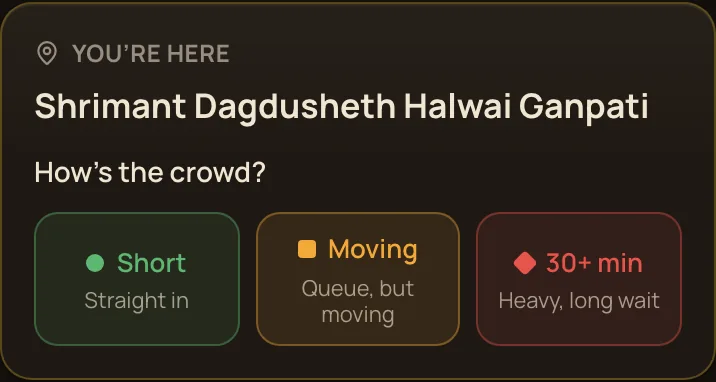
- Walk up to a mandal and a “You’re here” card appears on the home screen with the three buttons.
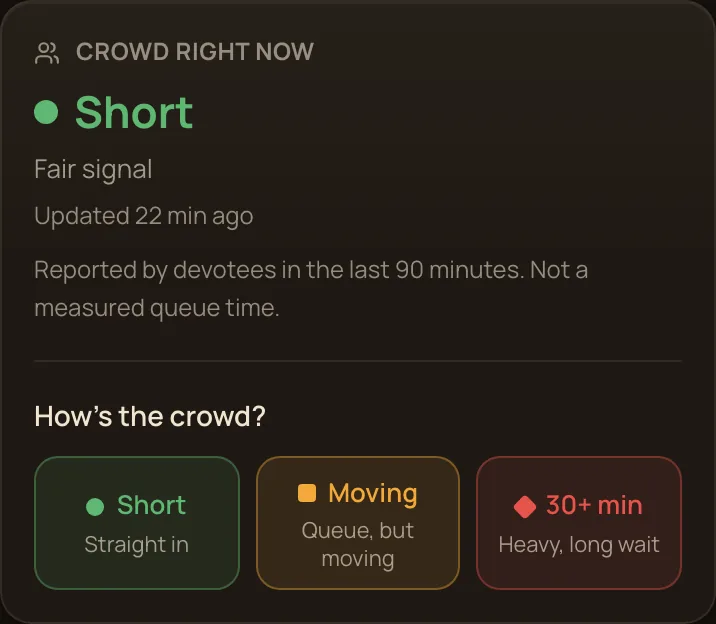
- Or open any mandal’s page and use “How’s the crowd?” — you can report from up to 1 km away.
- Tap Short, Moving, or 30+ min. That is the whole thing. No account, no sign-in.
- You can report the same mandal again after an hour, so a report near the end of a queue is welcome too.
Nothing about you is stored
Your coordinates are never sent to the server — the app works out on your own phone whether you are close enough, and sends only the mandal and the colour. No name, no account, no phone number, nothing sold to anyone.
Open the map and see all of it at once
नकाशा
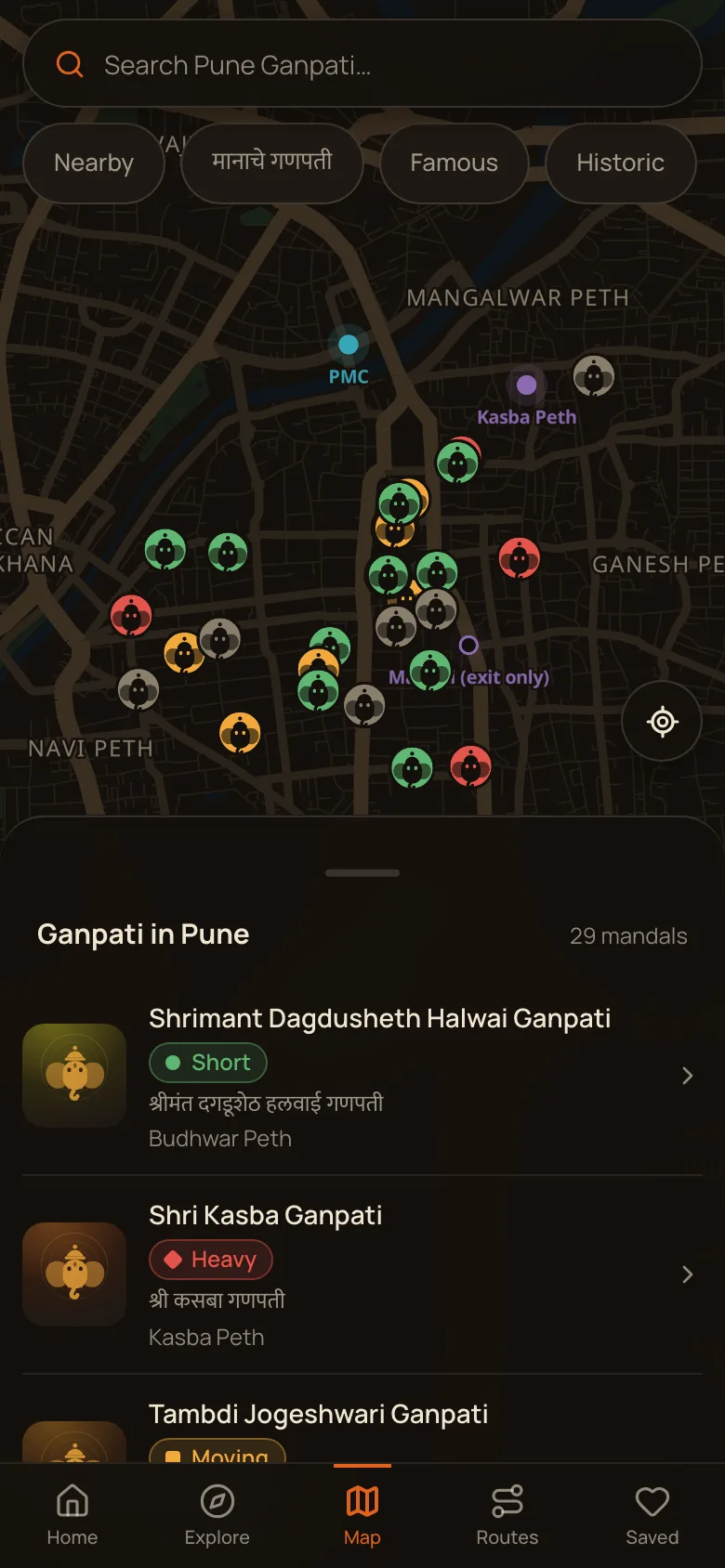
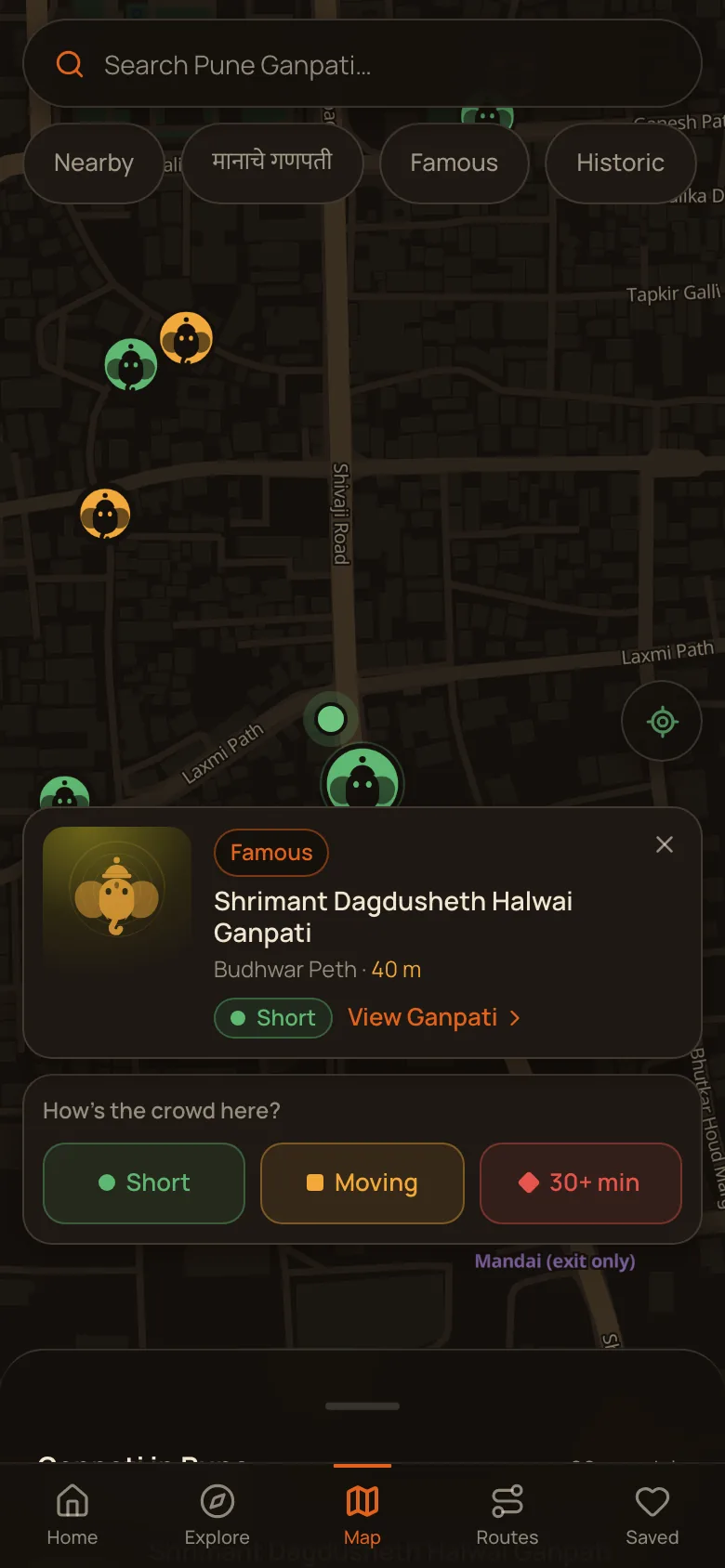
Map is the second button on the bottom bar. Every mandal in the app is on it, drawn in the colour of its queue this minute, along with the metro stations.
- The pin colour is the live queue: green, yellow, red, or grey for not yet reported.
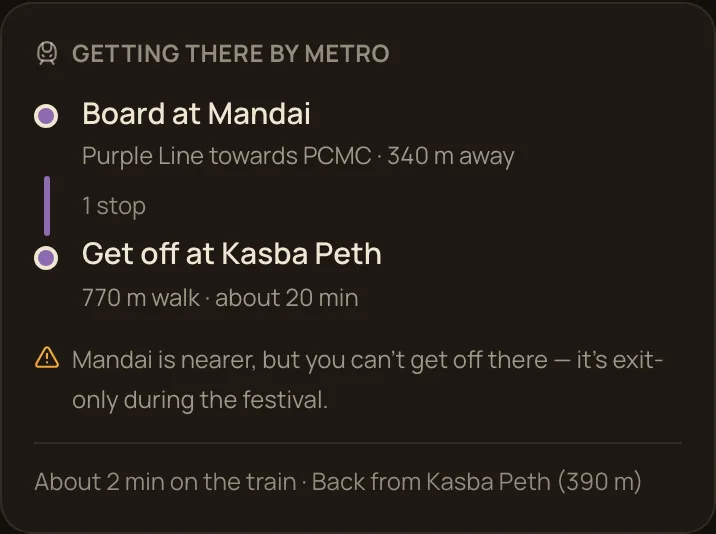
- Metro stations are marked too. Mandai is drawn hollow because during the festival it serves the journey home — arriving for darshan, use Kasba Peth.
- Tap any pin and its card slides up with the crowd, the distance from you, and the same three report buttons.
- Tap “View Ganpati” on that card for the full page.
- The chips at the top — Nearby, मानाचे गणपती, Famous, Historic — narrow it down.
Build your own route
स्वतःचा मार्ग
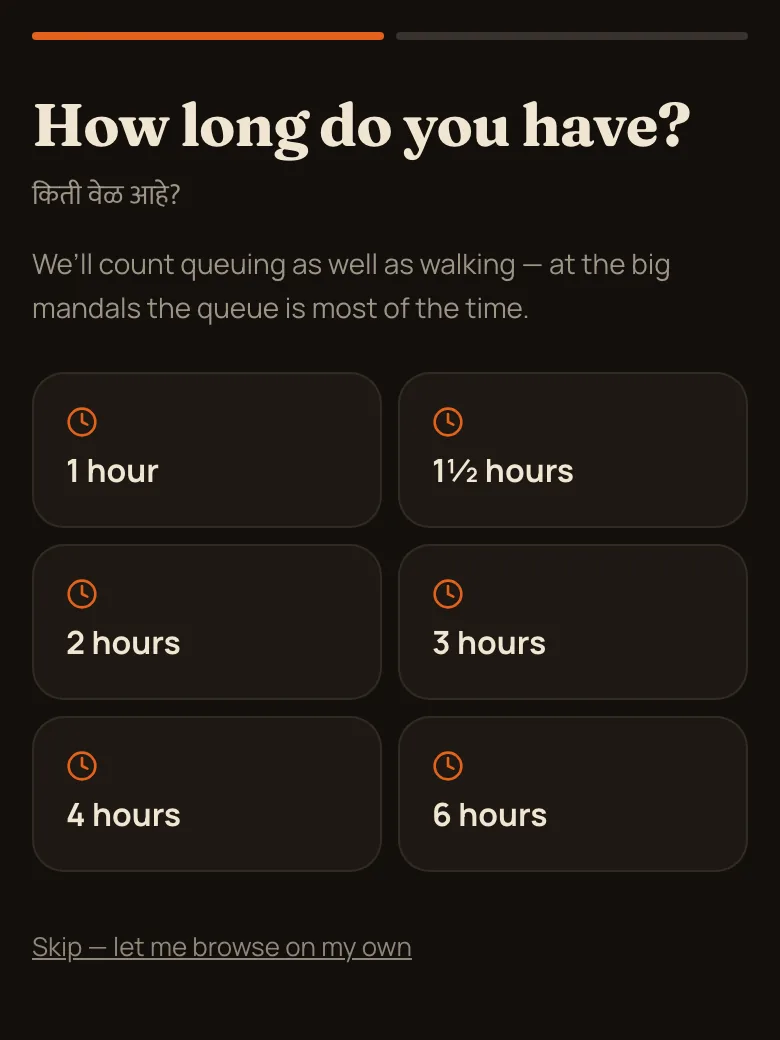
Short on time and want to cover as much as you can? Tap “Build my route”. It plans from where you are standing and counts the queue as well as the walk, because at the big mandals the queue is most of the evening.
- Say how long you have — one hour to six.
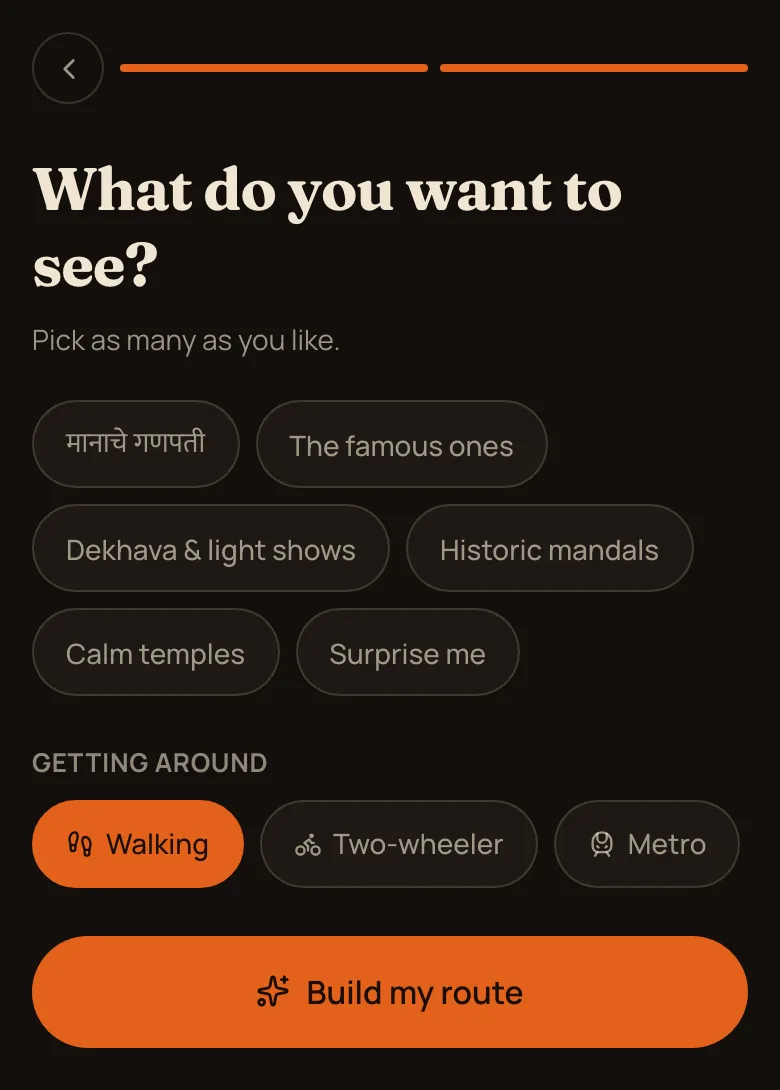
- Pick what you want: मानाचे गणपती, the famous ones, dekhava and light shows, historic mandals, calm temples, or surprise me.
- Choose how you are getting around — Walking, Two-wheeler or Metro.
- Tap Build my route and it opens your plan straight away.
Optimise the order, then walk it
क्रम सुधारा
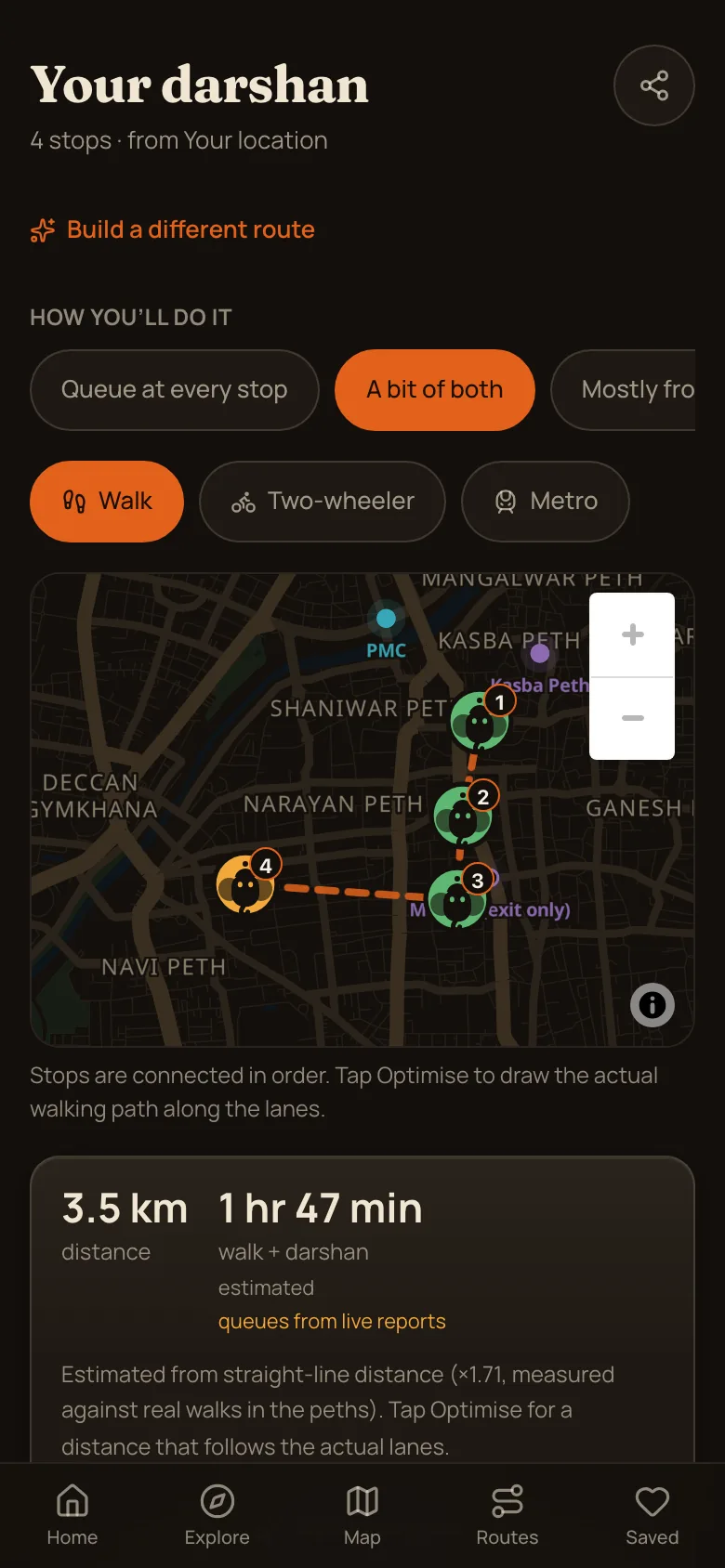
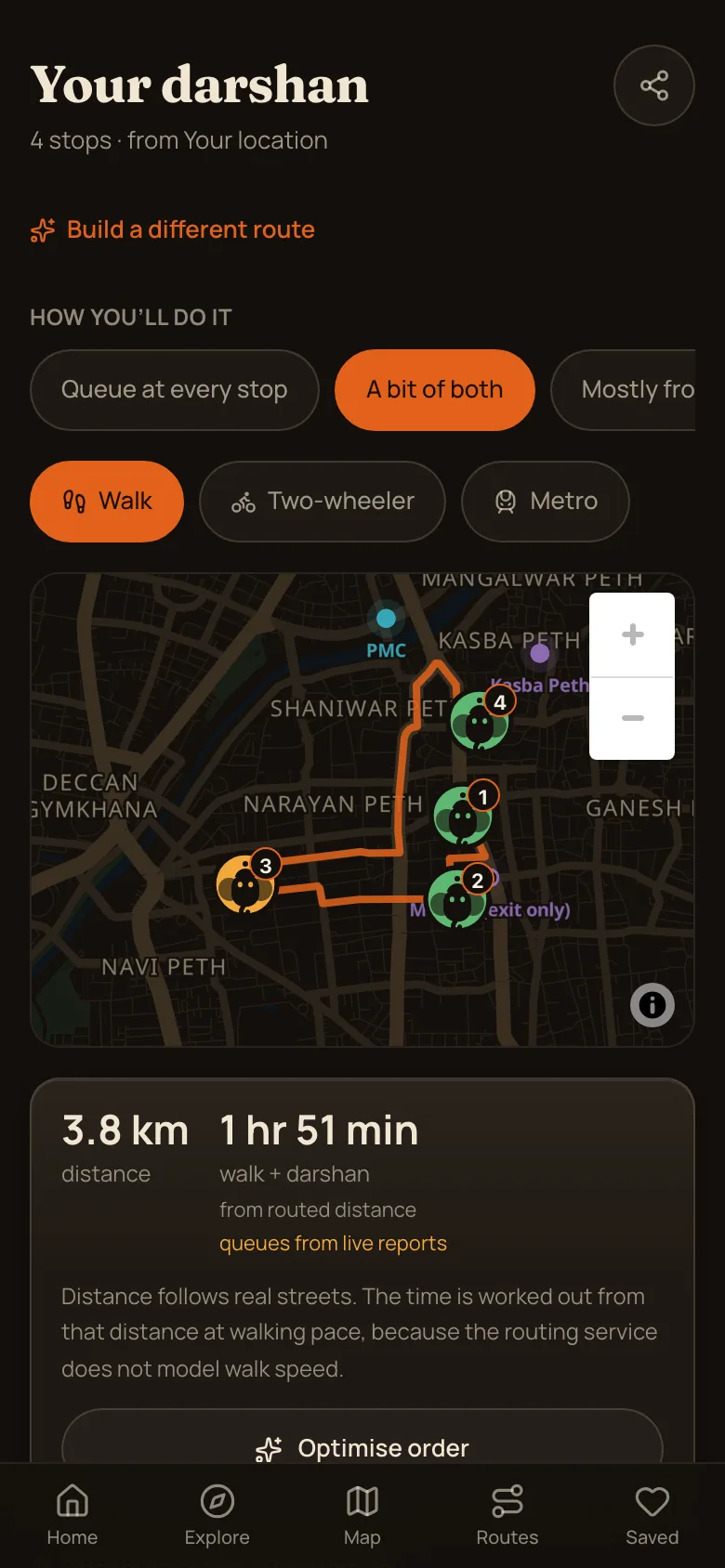
Your plan opens with the stops in a sensible order and a straight-line estimate. One tap turns that into the real thing.
- Tap Optimise order. It reorders the stops so you walk the least and still see all of them, and redraws the line along the actual lanes.
- Watch the distance change — the dotted straight line becomes a solid path that follows real streets.
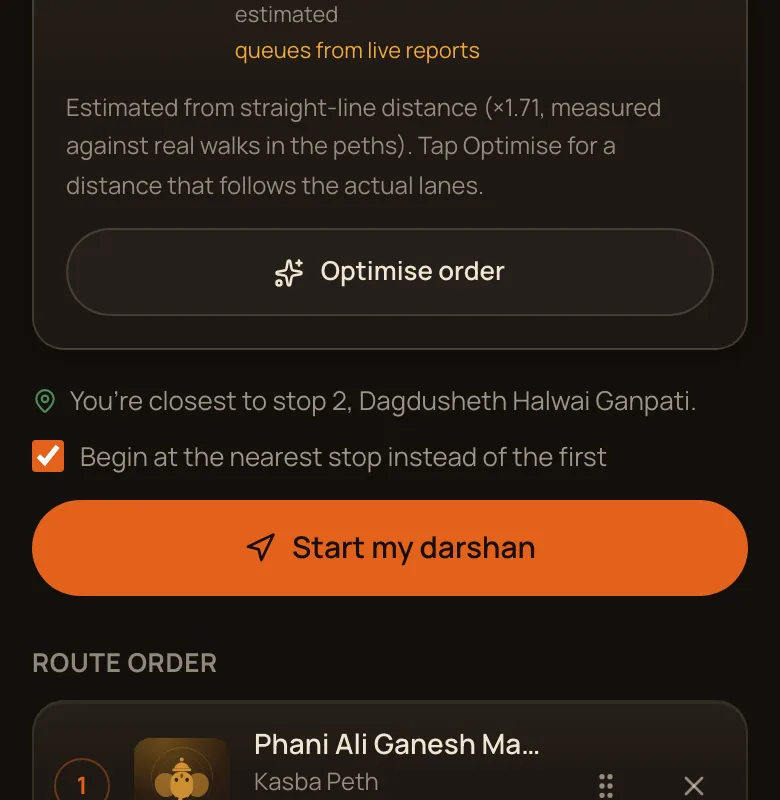
- Drag any stop by its handle to move it, or tap ✕ to drop it.
- On Metro it tells you where to board, which line, how many stops and where to get off.
- Tap “Start my darshan” to hand the whole route to Google Maps for turn-by-turn from your front door.
It starts from you
If you are already closer to stop 2 than to stop 1, the app says so and offers to begin there instead. Long routes open in Google Maps in parts, because Google takes only nine stops between start and finish — each part picks up where the last one ended, so no mandal is skipped.
Look up any mandal
सर्व मंडळे
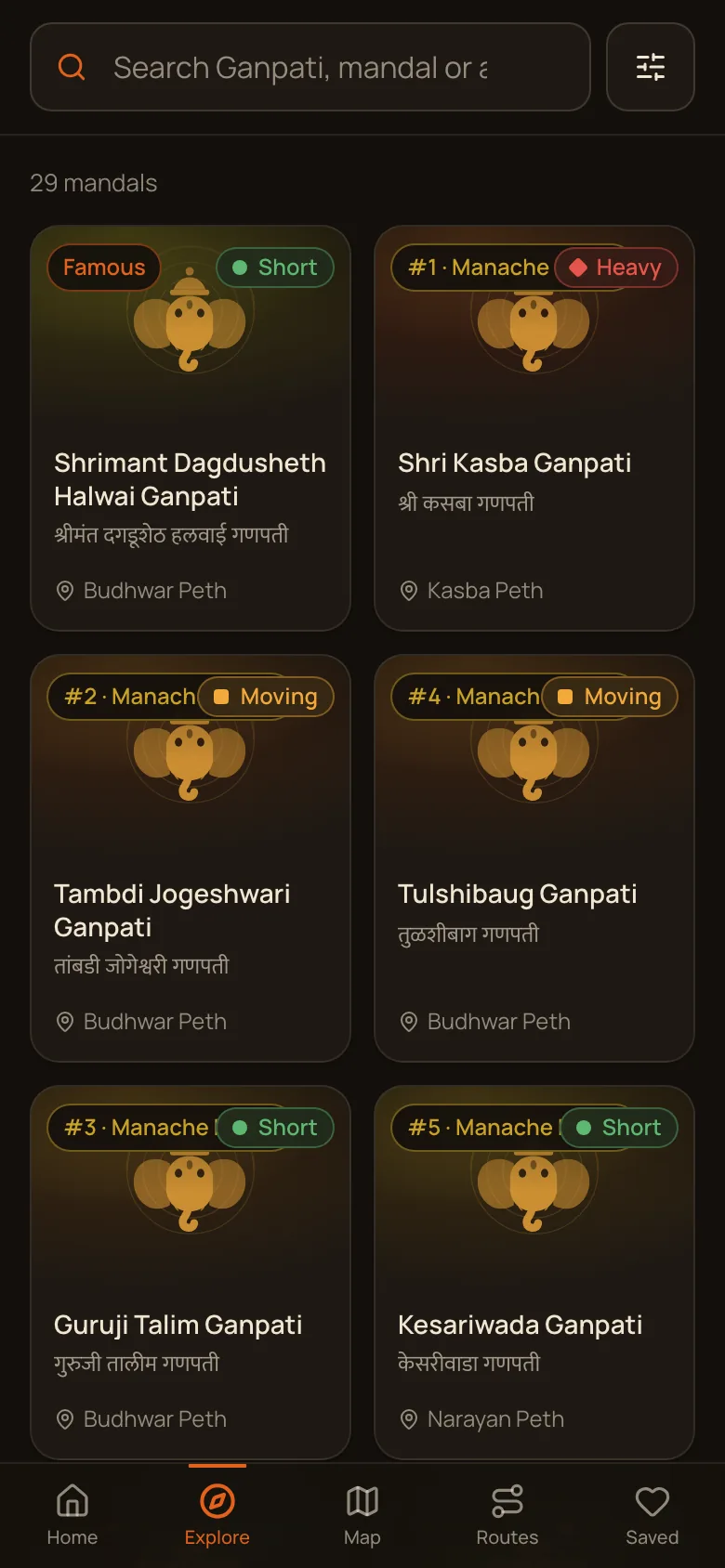
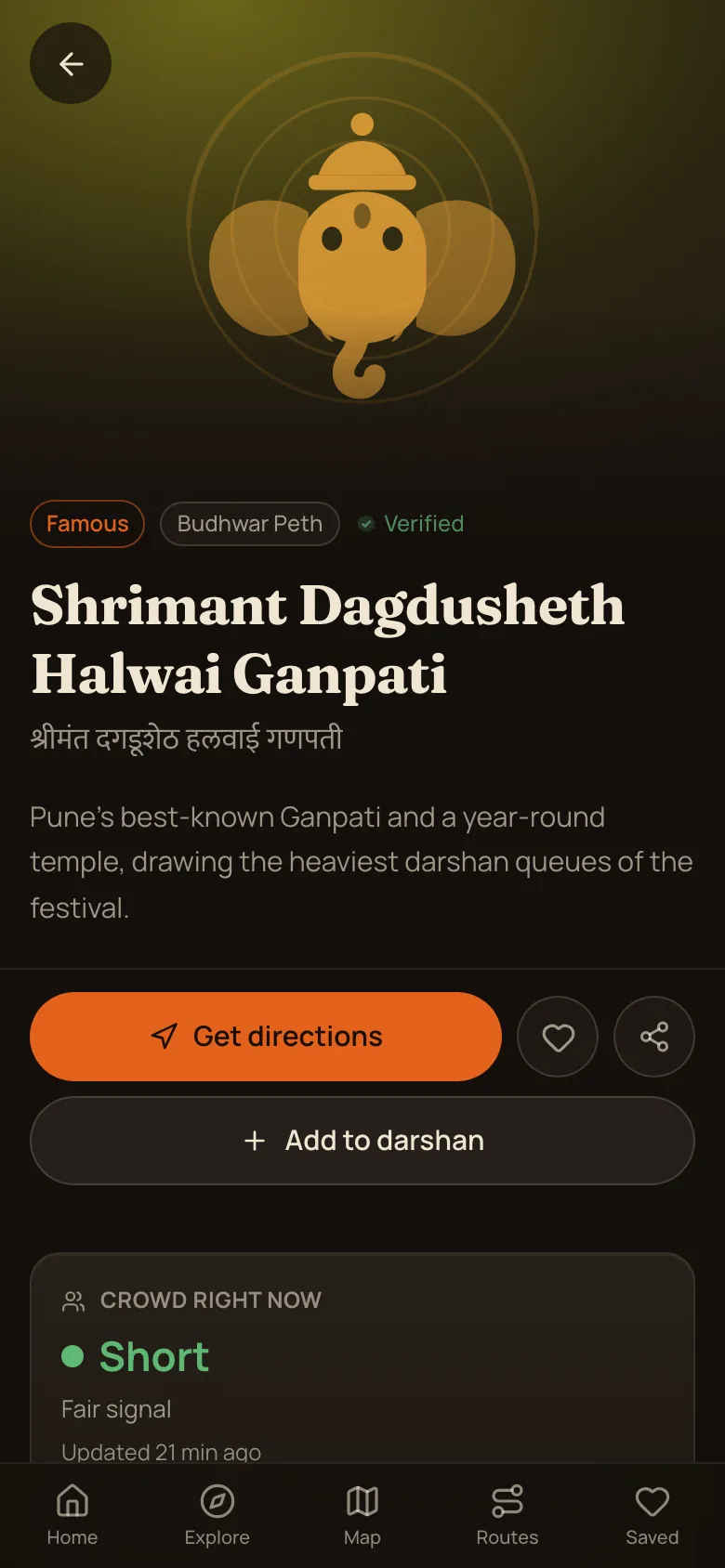
Explore is the full list — every mandal in the app with its live queue on the card, searchable by name, mandal or area.
- Search by English or Marathi name, by mandal, or by peth.
- Each card carries the queue colour, the Manache rank where it has one, and the peth.
- Open one for its story, its exact spot, and the crowd right now.
- Get directions sends you straight there. Add to darshan drops it into your route.
- The heart saves it to Saved, on this phone, no account needed.
Or take a ready-made route
तयार मार्ग
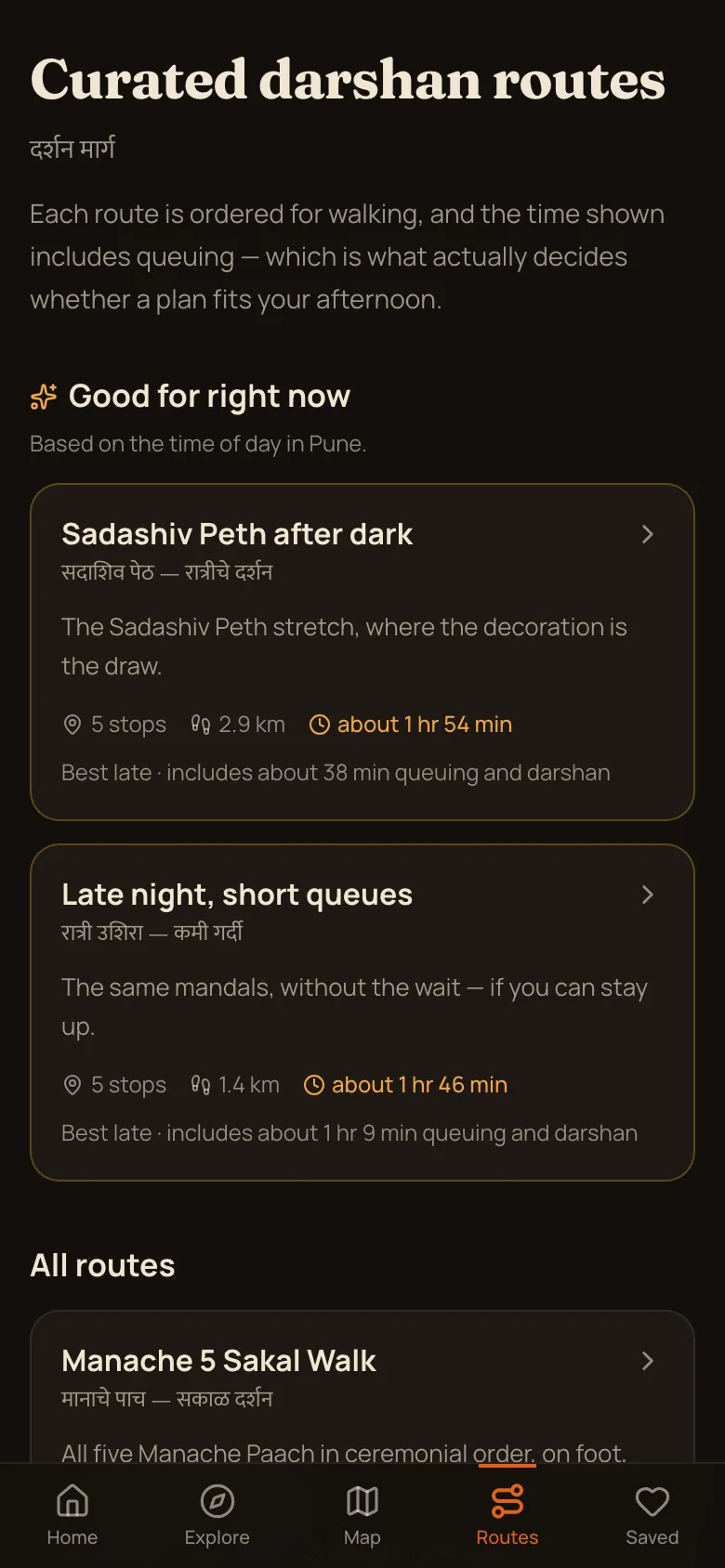
No time to plan anything? Routes has walks already put together — the Manache Paach in ceremonial order, the Sadashiv Peth stretch after dark, the late-night one for short queues.
- “Good for right now” picks the ones that suit the actual time of day in Pune.
- Every route shows stops, distance and a time that already includes queuing.
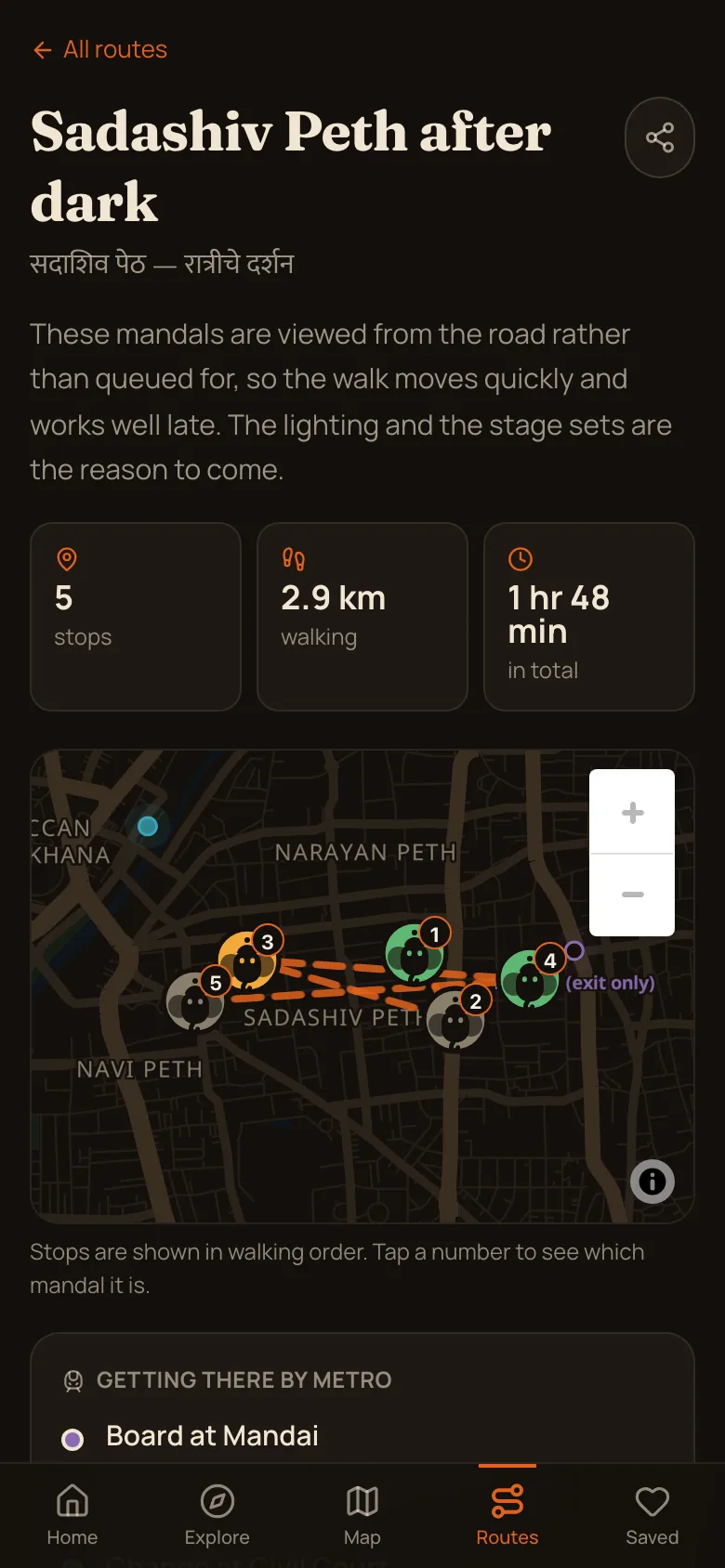
- Open one to see the stops in order on a map.
- Start it from where you are, or add it to your own darshan and change it.
Something wrong, or an idea? Tell the developer
संपर्क
One person built this and there is no support desk — which means the email and the phone number at the bottom of every page reach him directly, and something you point out today can be fixed tonight.
- A mandal missing, a pin in the wrong lane, a name spelt wrong, timings that are not right — say so and it gets corrected.
- Ideas are just as welcome as problems. Much of what is here came from someone asking for it.
- Write to singhgurnoor080@gmail.com or call +91 62830 31102. Both are on the About page.
- If it is a mistake in the app, mention which mandal or which screen — that is usually enough to find it.
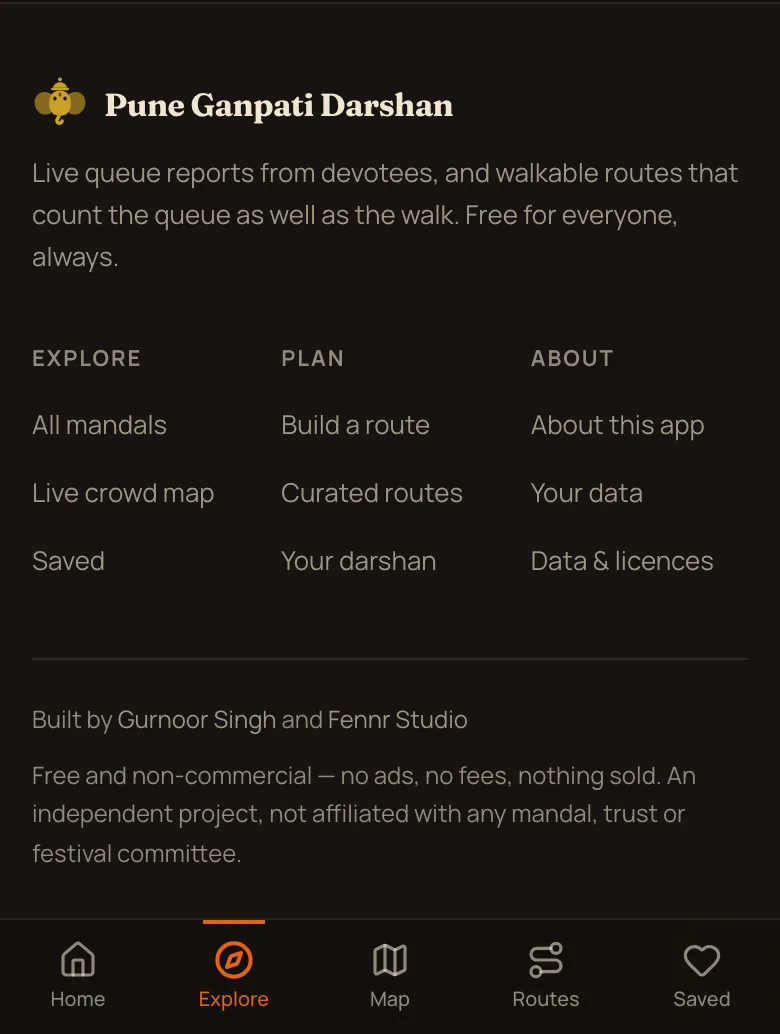
- Your data, in the footer, lists everything kept on your phone and clears any of it with one tap.
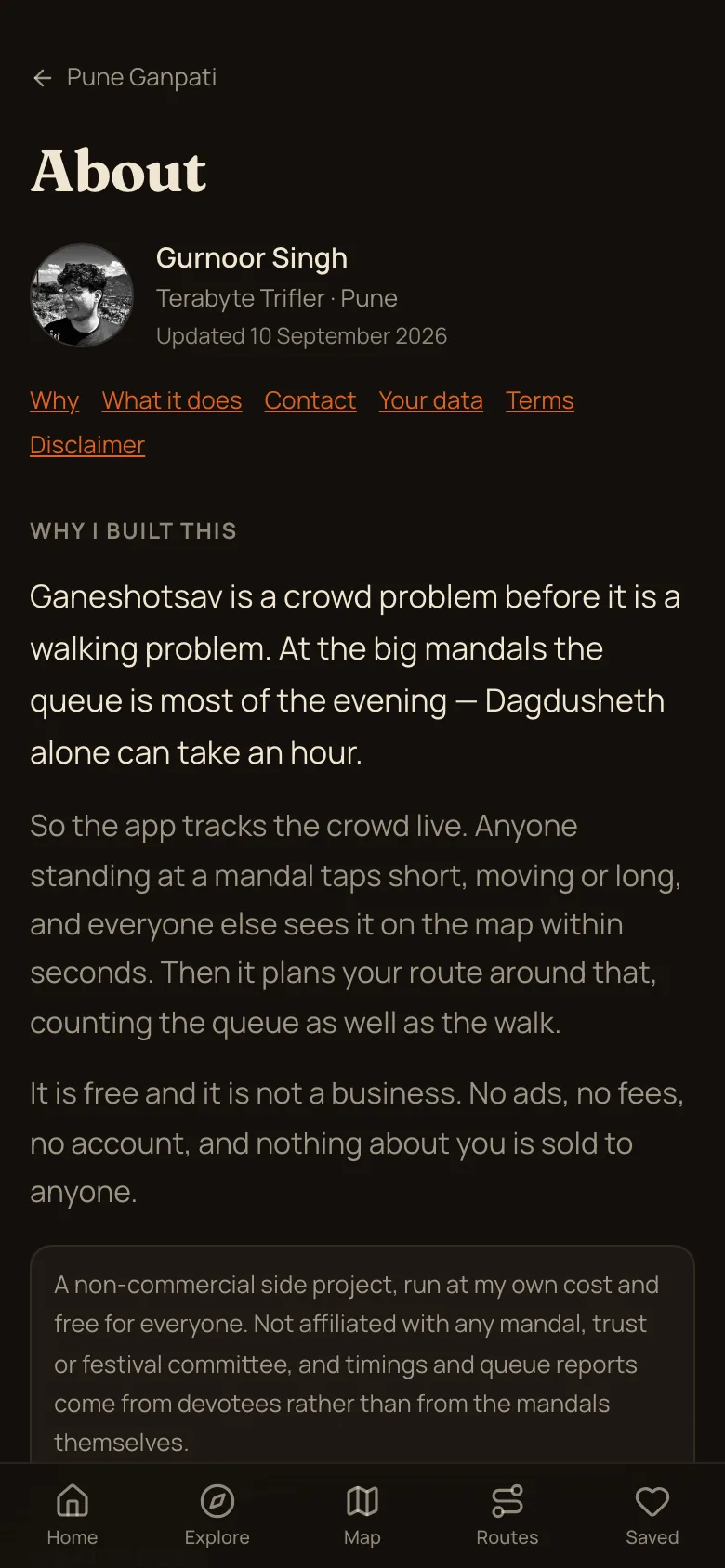
Free, and not a business
No ads, no fees, no account, nothing sold to anyone. An independent project run at one person’s own cost, not affiliated with any mandal, trust or festival committee — so there is nobody to complain to but him, and he reads all of it.